

Introduction
If you are wondering how to upload a video to YouTube, you are not alone. Millions of people upload videos every day, whether they are creating content for fun, building a personal brand, promoting a business, or trying to become a full-time creator. The good news is that YouTube has made the upload process easier than ever in 2026.
Even if you have never used YouTube Studio before, you can upload your first video within a few minutes. However, uploading a video is more than simply selecting a file and clicking the publish button. To get more views and reach a wider audience, you need to understand titles, descriptions, thumbnails, privacy settings, and video optimization.
This beginner-friendly tutorial explains how to upload a video to YouTube step by step. By the end of this guide, you will know exactly how to upload videos from your computer or phone and optimize them for success.
What You Need Before Uploading a Video to YouTube
Before you upload your first video, make sure you have a few things ready.
First, you need a Google account because YouTube operates through Google services. If you already use Gmail, you can sign in directly to YouTube with that account.
Second, prepare your video file. YouTube supports several formats, including MP4, MOV, AVI, and WMV. Among these, MP4 is the most recommended because it offers excellent video quality while keeping file sizes manageable.
You should also prepare:
- A catchy video title
- A detailed video description
- Relevant tags and keywords
- A custom thumbnail
- A playlist, if applicable
Planning these details before uploading saves time and helps your video perform better in YouTube search results.
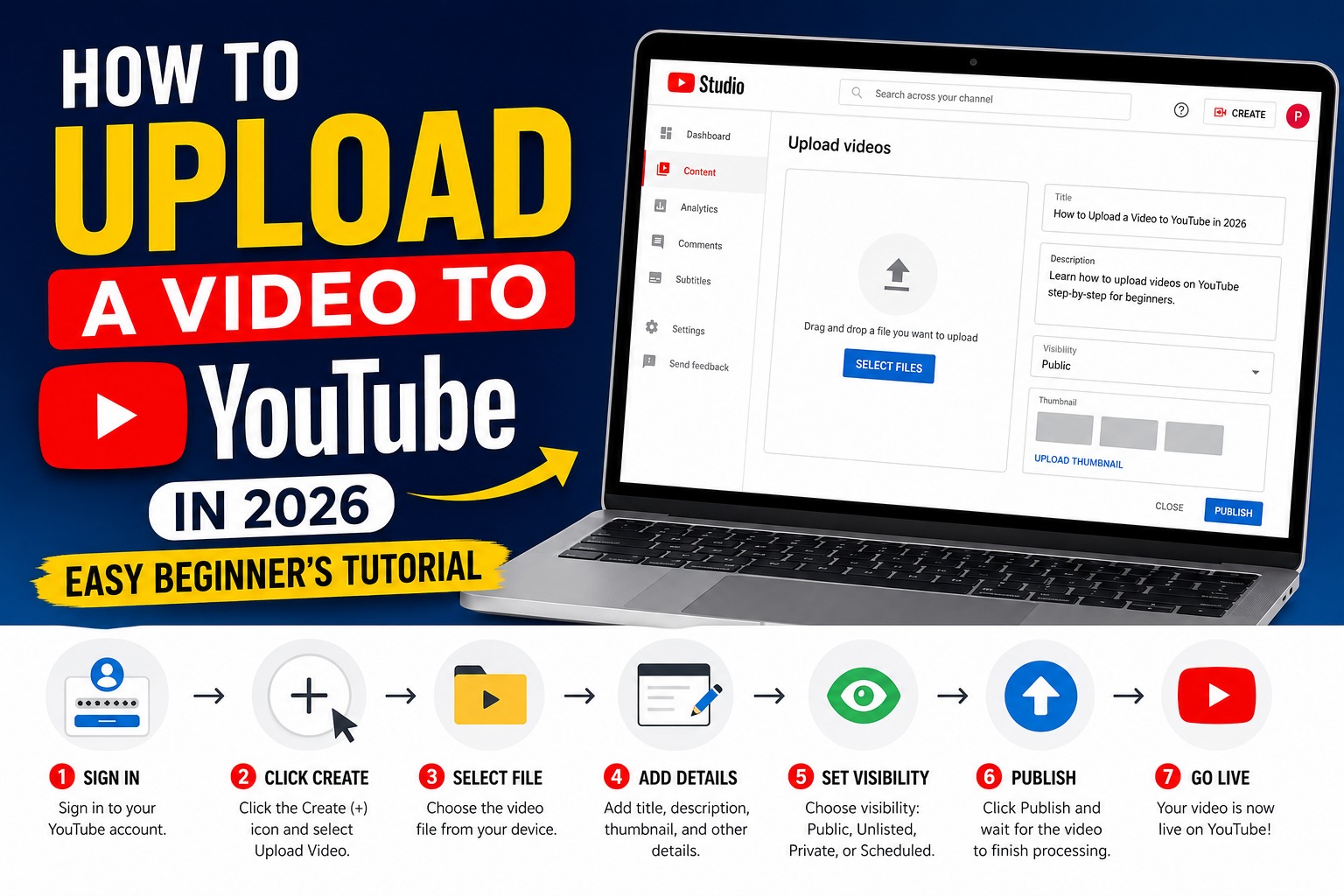
Step-by-Step Guide: How to Upload a Video to YouTube on Desktop
Uploading a video from your computer is straightforward.
Step 1: Sign in to YouTube
Visit YouTube and sign in using your Google account.
Step 2: Click the Create Button
In the top-right corner, click the Create (+) icon and select Upload Video.
Step 3: Select Your Video File
Click Select Files and choose the video you want to upload from your computer.
Alternatively, you can drag and drop the video directly into the upload window.
Step 4: Add Video Details
YouTube will ask you to add:
- Video title
- Description
- Thumbnail
- Playlist
- Audience settings
Make your title descriptive and include your focus keyword naturally.
Step 5: Choose Visibility
You can publish your video as:
- Public
- Unlisted
- Private
- Scheduled
If everything is ready, click Publish.
Congratulations! Your video is now live on YouTube.
How to Upload a Video to YouTube from Your Smartphone
Many creators upload videos directly from their phones because it is fast and convenient.
To upload using the YouTube app:
- Open the YouTube app.
- Tap the + icon at the bottom.
- Select Upload a Video.
- Choose a video from your gallery.
- Add a title and description.
- Select your audience settings.
- Tap Next and then Upload.
The app will process your video and publish it once the upload is complete.
Uploading from a smartphone is ideal for vlogs, shorts, travel videos, and social media content.
Best Video Formats and Sizes for YouTube in 2026
Understanding YouTube’s recommended video settings can improve quality and reduce upload errors.
Recommended Format
MP4 is the best format for YouTube because it offers:
- High quality
- Smaller file sizes
- Faster uploads
- Better compatibility
Recommended Resolution
Popular resolutions include:
| Resolution | Quality |
|---|---|
| 1280×720 | HD |
| 1920×1080 | Full HD |
| 2560×1440 | 2K |
| 3840×2160 | 4K |
Frame Rate
YouTube supports:
- 24 FPS
- 30 FPS
- 60 FPS
Creators who upload gaming or sports videos often choose 60 FPS for smoother playback.
How to Optimize Your Video Before Publishing
Knowing how to upload a video to YouTube is only half the process. Optimization is equally important.
Create a Strong Title
Your title should:
- Include the main keyword
- Be clear and descriptive
- Spark curiosity
Example:
How to Upload a Video to YouTube in 2026: Easy Beginner’s Tutorial
Write a Detailed Description
Your description should explain:
- What the video is about
- Important links
- Social media profiles
- Keywords related to the topic
The first two lines are especially important because they appear in search previews.
Add Tags
Tags help YouTube understand your content.
Examples:
- how to upload a video to youtube
- youtube tutorial
- upload youtube video
- youtube beginner guide
Design a Custom Thumbnail
An eye-catching thumbnail increases click-through rates.
Good thumbnails are:
- Bright and clear
- Easy to read
- Emotionally engaging
- Consistent with your brand
Understanding YouTube Privacy Settings
Before publishing, YouTube asks you to choose a visibility option.
Public
Anyone can watch your video.
This is the best option if you want views, subscribers, and search traffic.
Unlisted
Only people with the link can watch.
Perfect for:
- Client work
- Private tutorials
- Sharing with friends
Private
Only selected accounts can access the video.
Ideal for personal videos or unfinished content.
Scheduled
You can choose a future date and time for publishing.
Many professional creators schedule videos to maintain a consistent posting routine.
Common Problems When Uploading Videos to YouTube
Sometimes users experience errors during uploads.
Slow Upload Speed
This usually happens because of:
- Weak internet connection
- Large file sizes
- Background downloads
Try compressing the video or using a faster internet connection.
Unsupported File Format
If your video fails to upload, convert it to MP4.
Most editing software allows exporting videos in YouTube-compatible formats.
Processing Stuck at 95%
Large or high-resolution videos may take time to process.
Wait for YouTube to finish processing before closing the browser.
Copyright Issues
Uploading copyrighted music or videos may result in:
- Demonetization
- Copyright claims
- Video removal
Always use royalty-free music or content you own.
How to Upload YouTube Shorts
YouTube Shorts continue to grow in popularity in 2026.
To upload a Short:
- Open YouTube.
- Click the + button.
- Select Create a Short.
- Record or upload a vertical video.
- Add text, music, or effects.
- Publish the video.
Shorts Requirements
- Vertical format (9:16)
- Up to 3 minutes long
- High-quality video
- Engaging first few seconds
Shorts can help new creators gain subscribers quickly because YouTube actively promotes them.
Tips to Get More Views After Uploading
After learning how to upload a video to YouTube, the next step is growing your audience.
Upload Consistently
Channels that post regularly tend to grow faster.
Whether you upload:
- Once a week
- Twice a week
- Daily
Consistency matters more than frequency.
Focus on SEO
Include keywords in:
- Titles
- Descriptions
- Tags
- Captions
This helps YouTube understand your content and rank it in search results.
Engage With Viewers
Reply to comments and ask viewers questions.
Higher engagement signals tell YouTube that people enjoy your content.
Promote Videos on Social Media
Share your videos on:
- X (Twitter)
- TikTok
- Blogs and websites
External traffic can increase views and help videos gain momentum.
Final Thoughts
Learning how to upload a video to YouTube is an essential skill for anyone interested in creating content online. Whether you are uploading educational tutorials, gaming videos, vlogs, or business content, the process is simple once you understand the basics.
In 2026, YouTube provides powerful tools that allow beginners to upload videos quickly while giving advanced creators options for optimization and growth. From choosing the right file format to creating attractive thumbnails and writing SEO-friendly titles, every step plays a role in your video’s success.
If you follow the steps in this guide, you can confidently upload your videos, improve their visibility, and start building your audience on YouTube. The most important thing is to keep creating, keep learning, and stay consistent because every successful YouTuber started with their very first upload.