

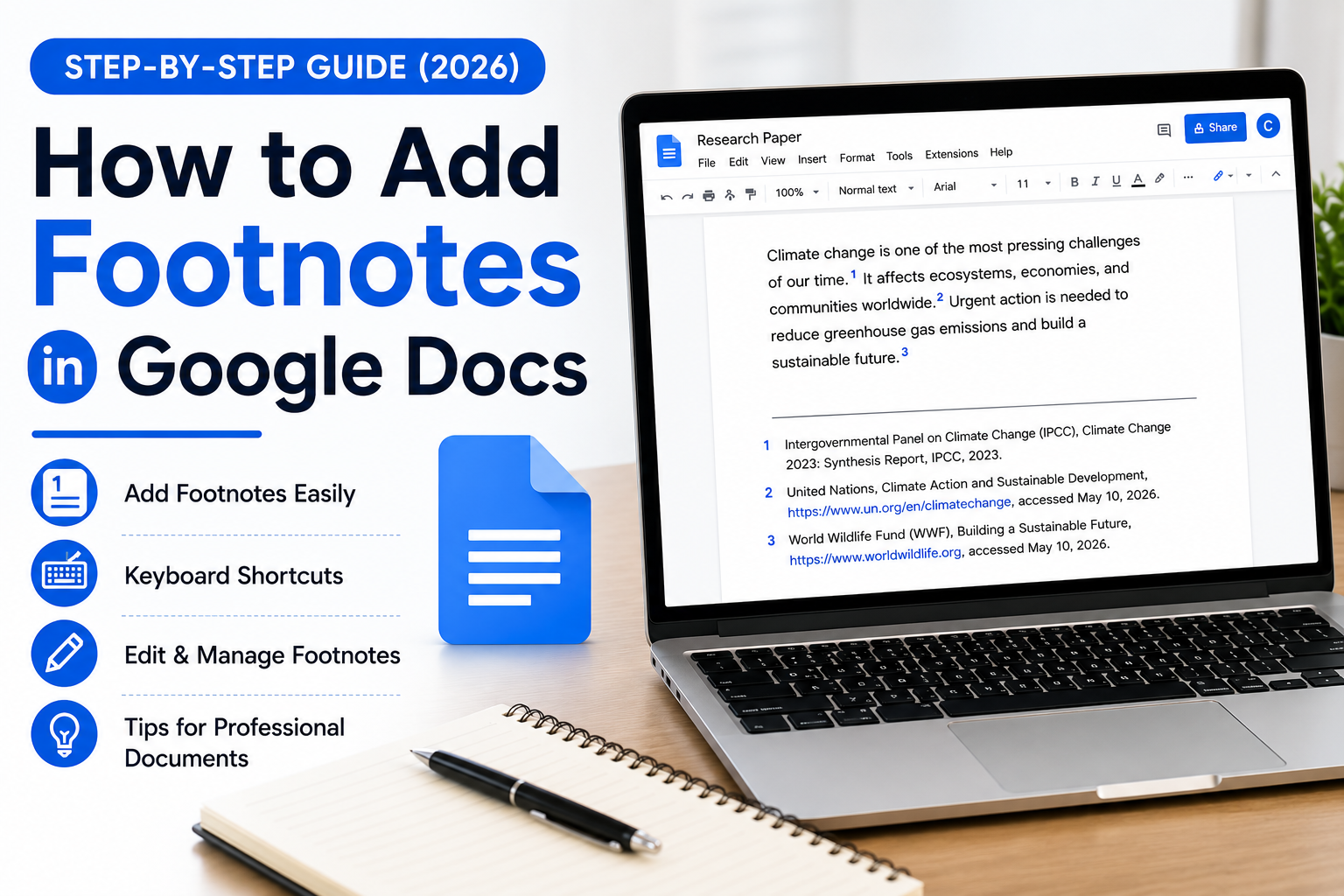
Google Docs has become one of the most popular word processing tools for students, teachers, researchers, writers, and business professionals. Since it is cloud-based, it allows users to collaborate in real time while creating well-formatted documents. One feature that often goes unnoticed but plays a significant role in professional and academic writing is the footnote. If you’re wondering how to add footnotes in Google Docs, you’ve come to the right place.
Footnotes help provide additional information, cite sources, explain complex terms, or give readers extra context without interrupting the main flow of your content. Whether you’re writing a research paper, thesis, business report, book manuscript, or blog, understanding how footnotes work can make your document look more credible and organized.
In this detailed guide, you’ll learn everything about how to add footnotes in Google Docs, including step-by-step instructions for desktop and mobile devices, editing and removing footnotes, formatting tips, common mistakes to avoid, and best practices for creating professional documents.
What Are Footnotes in Google Docs?
Footnotes are notes that appear at the bottom of a page. They are connected to a specific part of your text through a small superscript number. When readers reach the bottom of the page, they can find additional information related to that number.
Unlike comments, which are mainly used for collaboration, footnotes become part of the final document. They are commonly used in academic writing styles such as Chicago, Turabian, and sometimes MLA. Researchers often use them to reference books, journal articles, websites, interviews, and historical documents. Authors may also use footnotes to explain technical terms or provide interesting facts without cluttering the main content.
Google Docs automatically numbers footnotes in the correct order and places them at the bottom of each page, saving users from manually formatting citations.
Why Should You Use Footnotes in Google Docs?
There are several reasons why learning how to add footnotes in Google Docs is useful.
First, footnotes improve the credibility of your work by properly citing sources. Readers can verify information without interrupting the reading experience.
Second, footnotes allow you to include additional explanations that may not fit naturally into the main paragraph. Instead of making your content lengthy or distracting, you can provide extra details at the bottom of the page.
Third, academic institutions often require students to use footnotes in research papers and dissertations. Businesses also use them in reports to provide references, legal notes, or additional explanations.
Finally, footnotes make documents look professional and organized. Since Google Docs manages numbering automatically, users can focus on writing rather than worrying about formatting.
How to Add Footnotes in Google Docs on Desktop
The desktop version of Google Docs offers the easiest way to insert footnotes. The process only takes a few seconds.
Step 1: Open Your Document
Visit Google Docs and open an existing document or create a new one.
Step 2: Place Your Cursor
Click exactly where you want the footnote reference number to appear. This is usually after punctuation at the end of a sentence.
Step 3: Insert the Footnote
There are two simple methods.
Method One
- Click Insert
- Select Footnote
Method Two
Use the keyboard shortcut:
- Windows: Ctrl + Alt + F
- Mac: Command + Option + F
Google Docs immediately inserts a superscript number into your text and moves your cursor to the bottom of the page.
Step 4: Type Your Footnote
Simply enter your citation, explanation, or additional information.
That’s it.
Google Docs automatically updates numbering if you insert more footnotes later in the document.
How to Add Footnotes in Google Docs on Android and iPhone
Many users edit documents from their smartphones. Fortunately, Google Docs also supports footnotes on mobile devices.
On Android
- Open the Google Docs app.
- Open your document.
- Tap the Edit icon.
- Place the cursor where you need the footnote.
- Tap the plus (+) icon.
- Choose Footnote.
- Enter your note.
On iPhone or iPad
- Launch Google Docs.
- Open your document.
- Tap Edit.
- Position your cursor.
- Tap the Insert menu.
- Select Footnote.
- Type your information.
Although the interface may vary slightly depending on app updates, the process remains straightforward.
How to Edit, Delete, and Manage Footnotes
Adding footnotes is only part of the process. You should also know how to manage them effectively.
Editing Footnotes
Simply scroll to the bottom of the page where the footnote appears. Click inside the footnote text and make any necessary changes. Google Docs saves your edits automatically.
Deleting Footnotes
If you no longer need a footnote, delete the superscript number from the main body of your document instead of deleting only the text at the bottom.
Google Docs automatically removes the associated footnote and renumbers the remaining footnotes correctly.
Moving Footnotes
If you cut and paste text containing footnotes, Google Docs usually keeps the numbering intact and adjusts everything automatically.
Best Practices for Using Footnotes
Knowing how to add footnotes in Google Docs is important, but using them properly is equally essential.
Keep footnotes concise. They should support your content rather than overwhelm the reader.
Use consistent citation formatting throughout your document. Mixing styles can confuse readers and reduce professionalism.
Avoid placing multiple footnotes after every sentence. Instead, use them only when additional information genuinely improves understanding.
Double-check all citations for accuracy. Incorrect references can affect academic integrity and reduce trust in your work.
If your instructor or publisher requires a specific citation style, always follow those guidelines carefully.
For collaborative documents, review footnotes before final submission to ensure everyone follows the same formatting standards.
Common Problems When Adding Footnotes in Google Docs
Although Google Docs handles footnotes automatically, users occasionally encounter issues.
One common problem is trying to insert a footnote in Suggesting mode. Depending on permissions, this may not work correctly.
Another issue occurs when users manually type superscript numbers instead of using the built-in Footnote feature. This can cause numbering errors later.
Sometimes copied text from Microsoft Word or PDFs may have formatting inconsistencies. In such cases, recreating the footnotes inside Google Docs often solves the problem.
Users may also accidentally delete the footnote text while leaving the reference number in place. Always remove the superscript reference if you want the entire footnote deleted.
Keeping your document organized and using Google’s built-in tools prevents most formatting problems.
Footnotes vs Endnotes: What’s the Difference?
Many people confuse footnotes and endnotes because both provide additional information or citations.
Footnotes appear at the bottom of the same page where the reference occurs. Readers can immediately access the note without flipping pages.
Endnotes, on the other hand, appear together at the end of the document or chapter.
Footnotes are generally preferred for research papers and historical writing because they improve readability.
Endnotes are commonly used in books and lengthy publications where too many footnotes would clutter each page.
Google Docs currently supports footnotes directly. If you need endnotes, you’ll usually create them manually or use add-ons.
Tips for Academic and Professional Documents
If you’re preparing assignments, reports, or research papers, following professional formatting practices can make your work stand out.
Always place the cursor after punctuation before inserting a footnote.
Use reliable sources such as books, scholarly journals, government websites, and official publications.
Avoid using footnotes for unnecessary comments that distract from your main argument.
Review your entire document before submission to ensure numbering is sequential and citations are complete.
If you’re collaborating with classmates or coworkers, make sure everyone follows the same citation style throughout the document.
Finally, back up your work regularly using Google Drive, where every change is saved automatically.
Conclusion
Learning how to add footnotes in Google Docs is a valuable skill for students, researchers, educators, writers, and professionals. Footnotes make your documents more organized, trustworthy, and reader-friendly by providing citations and additional explanations without interrupting the main content.
Google Docs makes the entire process incredibly simple. With just a few clicks—or a quick keyboard shortcut—you can insert, edit, delete, and manage footnotes automatically. Since the platform also renumbers footnotes whenever changes are made, it saves time and reduces formatting errors.
Whether you’re writing a college assignment, a business report, or a professional manuscript, mastering footnotes will improve both the quality and credibility of your work. By following the steps and best practices outlined in this guide, you’ll be able to create polished, professional documents with confidence.
Frequently Asked Questions (FAQs)
How do I add footnotes in Google Docs quickly?
You can click Insert > Footnote or use Ctrl + Alt + F on Windows and Command + Option + F on Mac.
Can I add footnotes using the Google Docs mobile app?
Yes. Both Android and iPhone versions support adding footnotes directly within the app.
Does Google Docs automatically number footnotes?
Yes. Every new footnote is numbered automatically, and numbering updates whenever footnotes are added or removed.
Can I edit a footnote after creating it?
Absolutely. Simply scroll to the bottom of the page and edit the footnote text.
Are footnotes different from comments?
Yes. Comments are mainly for collaboration and can be resolved or deleted. Footnotes become part of the final document and are intended for citations or additional information.
Can I convert footnotes into endnotes?
Google Docs doesn’t provide a built-in option for endnotes. You would need to create them manually or use a compatible add-on.